
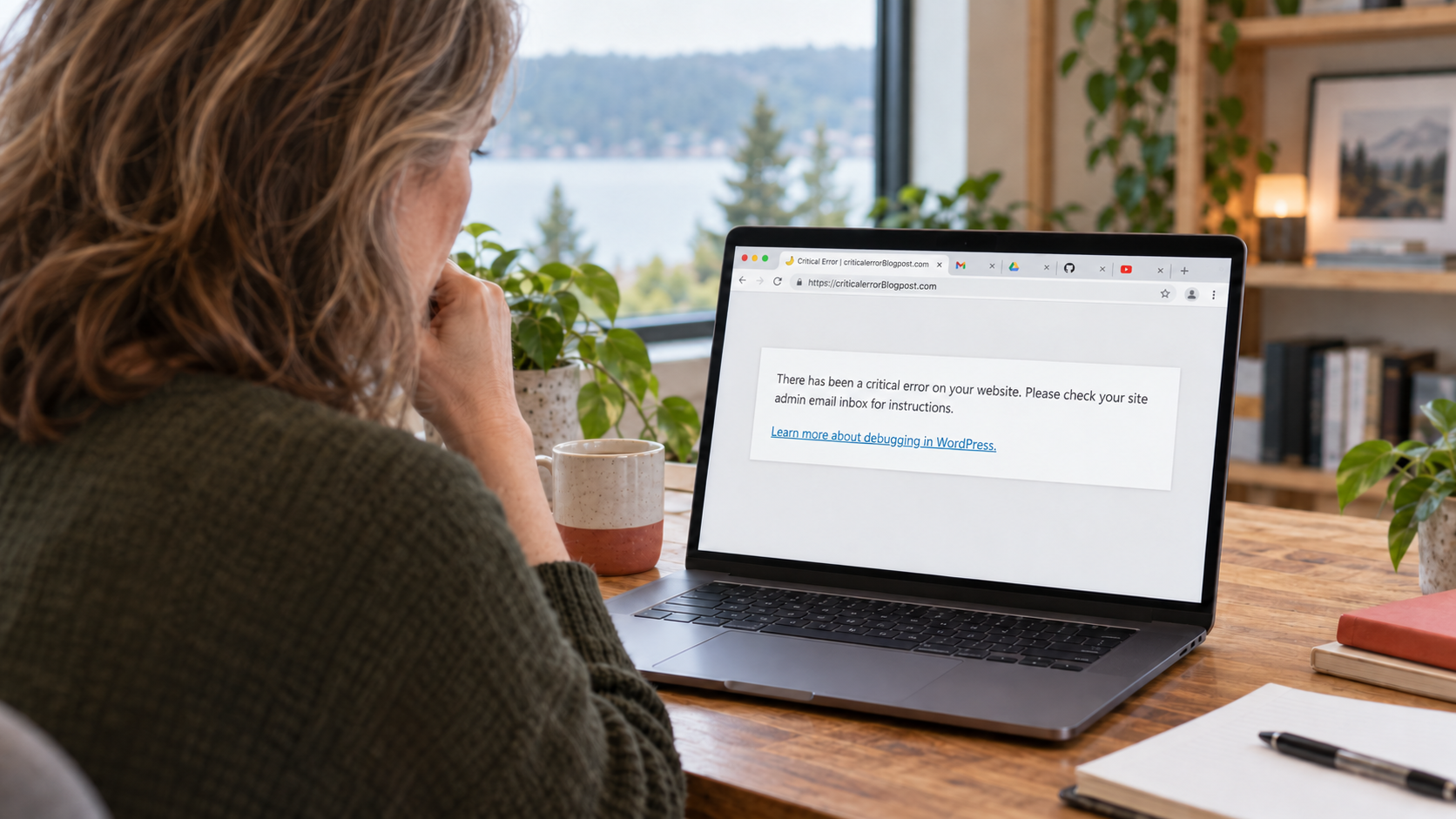
You visit your website and find a blank page with one deeply unhelpful sentence:
There has been a critical error on this website.
WordPress may add a link about troubleshooting, but that does not tell you whether the site will be back in five minutes or whether you are about to lose the afternoon.
The good news is that this message usually does not mean your website is gone. It means WordPress encountered a fatal PHP error and stopped the page before it could finish loading. The site’s files and database are normally still there. The immediate job is to identify what failed without damaging anything else.
If your site is currently down and it generates leads, accepts orders, or supports customers, send us the URL and tell us what changed. A senior WordPress developer can review the failure and give you practical next steps.
What Does “There Has Been a Critical Error on This Website” Mean?
WordPress is assembled from several moving parts: WordPress itself, PHP, a theme, plugins, custom code, a database, and the server that runs all of it. A critical error appears when PHP reaches a problem serious enough that it cannot continue processing the request.
WordPress deliberately hides the raw error from public visitors. That is good for security, but it also means the visible message is a symptom rather than a diagnosis.
The real explanation is usually in one of three places:
- The WordPress recovery email sent to the site administrator
- The PHP or web-server error log in your hosting account
- The WordPress debug log, if logging has been safely enabled
The goal is not to try every fix on the internet. It is to find the specific component named in the error and work backward from there.
The Most Common Causes of a WordPress Critical Error
1. A Plugin Update Introduced a Conflict
This is one of the most common scenarios. A plugin may expect a different PHP version, conflict with another plugin, call a function that no longer exists, or contain a bug in a new release.
The update is not always the whole story. Sometimes it merely exposes an older compatibility problem elsewhere in the site. That is why rolling back the last plugin can restore the site without fully resolving the underlying risk.
This is also why automated WordPress plugin updates can cause critical site crashes when nobody tests compatibility or checks the site afterward.
2. The Theme or Custom Code Failed
A theme update, an edit to functions.php, or a custom code snippet can trigger a fatal error. The timing matters: if the critical error appeared immediately after someone edited code or deployed a change, start there.
Child themes and custom plugins make changes easier to isolate. Edits buried inside a commercial theme are more fragile and may be overwritten during future updates.
3. The PHP Version Changed
Hosting companies periodically retire old PHP versions and move sites to newer ones. That can expose plugins, themes, or custom code that have not kept pace.
Switching PHP back may get the site online temporarily, but an unsupported PHP version is not a sound long-term fix. The safer solution is to identify and repair or replace the incompatible code.
4. The Site Ran Out of Memory or Server Resources
Some fatal errors happen because a request exhausted its PHP memory limit or took too long to complete. This can result from a heavy plugin, a runaway database query, a large import, a traffic spike, or too many simultaneous PHP workers.
Raising a limit can help in some cases, but it can also hide inefficient code. If the error keeps returning, resource exhaustion is evidence to investigate—not simply a request for a larger number.
5. Files Are Incomplete or Corrupted
An interrupted update can leave WordPress core, a plugin, or a theme with missing or mismatched files. Disk-space problems and failed deployments can produce similar symptoms.
Reinstalling a clean copy of the affected component may fix the immediate error. Before doing that, confirm that the component has not been customized directly.
6. The Site Has Been Compromised
A critical error does not automatically mean your site was hacked. Most are ordinary software failures. Malware can, however, alter PHP files, load malicious code, or consume server resources until the site fails.
Unexpected administrator accounts, unfamiliar files, spam pages in Google, redirects, security warnings, or repeated reinfection all justify a broader WordPress hack-recovery review.
What to Do First
Step 1: Record What Happened
Before changing anything, capture the exact message and the affected URL. Check whether the problem appears:
- On every page or only one page
- On the public site, in
/wp-admin/, or both - For every visitor or only while logged in
- Immediately after an update, deployment, content edit, or hosting change
Write down the approximate time the error began. That makes it much easier to match the failure to an error-log entry or automated update.
Step 2: Check the Administrator Email
WordPress has a built-in Recovery Mode for certain fatal errors. It may email the site administrator with the subject line “Your Site is Experiencing a Technical Issue.” Check spam and quarantine folders as well as the inbox.
The message may identify the plugin or theme involved and include a special Recovery Mode link. That link can let an administrator log in while the faulty component remains paused for that session.
Do not assume the email will always arrive. The address may be outdated, the site may not be configured for reliable transactional email, or the failure may occur too early for WordPress to send it. No email does not mean there is no useful error information.
Step 3: Protect the Current State
If you have a recent backup, confirm that it includes both the site files and the database. If the hosting account is still accessible, take a fresh backup or snapshot before making invasive changes.
This is especially important for WooCommerce, membership, registration, or lead-generation sites. Restoring yesterday’s database may also erase today’s orders, form submissions, user accounts, or inventory changes.
A backup is not only an escape hatch. It gives a developer a safe point from which to investigate. If you are unsure what your backup system captures, review our guide to WordPress site backups before relying on it during an emergency.
Step 4: Read the Error Log
The error log is normally the fastest path to the cause. Look for a new PHP Fatal error entry at the time the page failed. The message often includes a file path that points to a plugin, theme, or custom-code directory.
WordPress also provides debugging tools that can write errors to a private log. These should be used carefully: make a backup or use a staging environment before changing the configuration, and never display detailed error information publicly on a production site.
The first file named in the log is not always the true culprit, but it is a much better starting point than disabling things at random.
Step 5: Isolate the Failed Component
If the log clearly identifies a plugin, an experienced site owner or developer may temporarily deactivate it and test the site. When the dashboard is inaccessible, plugins can also be deactivated through the hosting file manager, FTP, WP-CLI, or the database.
“Deactivate everything” is common internet advice, but it carries real consequences on a live business site. Disabling all plugins can remove payment methods, forms, security controls, caching, integrations, and customer-facing features at once.
Use the narrowest intervention the evidence supports. Then test more than the homepage. Check the admin area, forms, search, login, checkout, scheduled jobs, and any feature the affected component touched.
Step 6: Fix the Cause, Not Only the Screen
Getting the page to load again is the first milestone. It is not necessarily the end of the repair.
You still need to know:
- What produced the fatal error?
- Was the failed component rolled back, patched, or merely turned off?
- Is the current PHP version supported?
- Did the outage interrupt orders, emails, scheduled tasks, or integrations?
- Could the same update run again automatically?
- Is there a tested backup and a safe update process for next time?
A quick rollback can be appropriate during an outage. Leaving the site indefinitely on vulnerable or incompatible software is not.
What Not to Do During a WordPress Critical Error
Panic creates second problems. Avoid these common mistakes:
Do Not Overwrite the Site With an Old Backup Immediately
A restore can discard recent business data. First determine whether the database needs to be rolled back at all. Often the broken code can be repaired while preserving current content, orders, and submissions.
Do Not Edit Production Files Without Preserving a Copy
Even a one-line change can make recovery harder if you cannot reconstruct the original state. Save the file, record the change, and use staging when the situation allows.
Do Not Leave Debugging Output Visible
Raw PHP errors can reveal server paths and implementation details to visitors. Log diagnostic information privately and disable debugging when the work is complete.
Do Not Clear Every Cache and Call It Fixed
Clearing caches is a reasonable test, but a cache rarely causes a true PHP fatal error by itself. If clearing the cache makes the page appear again, confirm whether it exposed a deeper compatibility or deployment issue.
Do Not Update Everything at Once
Bulk updates erase the timeline that helps identify the cause. They can also introduce additional variables while the site is already unstable.
Can You Fix the Critical Error Yourself?
Possibly. If the recovery email identifies one nonessential plugin, you have a verified backup, and you are comfortable using the hosting controls, a cautious rollback or deactivation may restore the site.
Call a WordPress developer when:
- The site takes payments, registrations, donations, or sensitive submissions
- The error affects both the public site and the dashboard
- No usable backup exists
- The logs point to custom code or several interacting components
- The error began after a PHP or server change
- The site comes back but fails again
- You see signs of malware or unauthorized access
- You are not sure whether a restore will erase new data
The expensive part of a critical error is often not the code repair. It is the business impact of experimenting on a live site while leads, orders, or customer access remain unavailable.
That distinction is explored further in our comparison of WordPress emergency recovery and proactive maintenance.
How to Prevent the Next Critical Error
No maintenance plan can promise that software will never fail. Good maintenance changes how often failures happen, how quickly they are detected, and how safely the site can be restored.
A resilient process includes:
- Automated backups stored away from the web server and tested periodically
- Staging tests before risky WordPress, plugin, theme, or PHP updates
- Uptime and error monitoring
- A record of recent deployments and configuration changes
- Routine review of abandoned, redundant, and incompatible plugins
- Enough server capacity for the site’s actual workload
- A developer who already understands the site before an emergency
This is the distinction between merely installing updates and providing professional WordPress maintenance. The real product is not the update itself. It is continuity.
Your Site Is Probably Recoverable. The Sequence Matters.
“There has been a critical error on this website” sounds final. Usually, it is WordPress telling you that one request encountered a fatal problem. The useful evidence is still there—in the timing, recovery email, logs, backups, and recent changes.
Preserve the site, identify the failure, make the smallest safe intervention, and test the business functions that matter. Then resolve the underlying compatibility or maintenance problem so the same outage does not return next week.
If your website is down now, tell us what you are seeing. Include the URL, when the error began, and anything that changed immediately beforehand. We will review it and respond with practical next steps.
Frequently Asked Questions
Why Does WordPress Say There Has Been a Critical Error?
The message appears when WordPress encounters a fatal PHP error and cannot finish loading the page. Common causes include plugin or theme conflicts, incompatible PHP versions, failed updates, exhausted server resources, custom-code errors, and corrupted files.
Where Is the WordPress Critical-Error Email Sent?
WordPress normally sends the recovery email to the administration email address configured under Settings > General. Check spam and quarantine folders. The message may not arrive if the address is outdated or the site’s outgoing email is not working reliably.
Can I Access WordPress After a Critical Error?
Sometimes. The public site and admin area may fail independently. If WordPress sends a Recovery Mode link, that special link may allow an administrator to log in with the faulty plugin or theme paused for the session.
Will Restoring a Backup Fix a WordPress Critical Error?
It may, but a full restore can overwrite newer orders, form entries, content, users, or inventory data. Identify what changed and determine whether only files—or one component—can be restored before rolling back the entire site and database.
Does a WordPress Critical Error Mean the Site Was Hacked?
Not usually. Most critical errors come from software compatibility, updates, custom code, or resource limits. Malware is possible when other warning signs are present, such as unauthorized administrators, spam pages, unexpected redirects, changed files, or repeated reinfection.